Google Drive backups & master password
Back up and restore servers, SSH keys, and preferences encrypted locally with AES-256 inside your private appDataFolder.
STALMAS lets you export and restore your server profiles and configuration via a local encrypted file or Google Drive sync (Pro feature).
How the private appDataFolder works
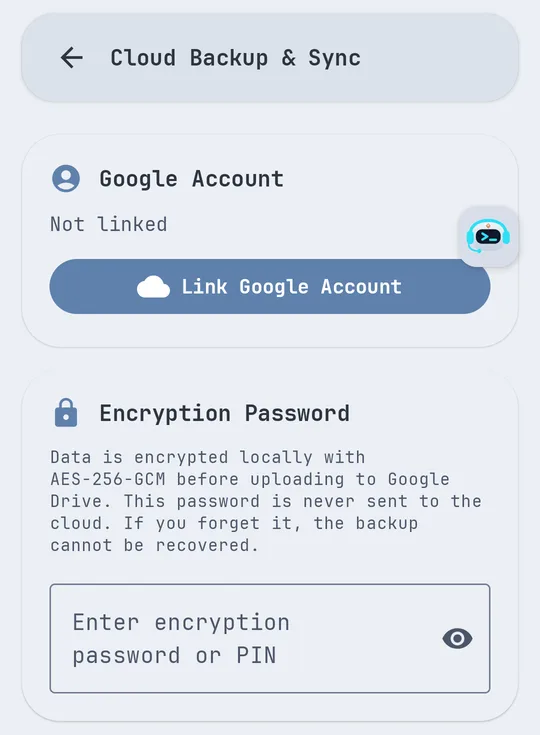
- When you link your Google account, STALMAS requests access strictly to the app’s hidden private space in Google Drive (
drive.appdata). - The app cannot read or browse your personal Drive files, folders, or photos.
- Before anything leaves your phone, STALMAS encrypts the archive locally with AES-256 derived from your encryption password or PIN.
- Google Drive only stores ciphertext; neither Google nor the developer holds your master password.
Backing up & restoring
Cloud sync with Google Drive
- Open Settings → Backup & Sync.
- Tap to link your Google account (Link your Google account to get started).
- Enter your encryption password (Enter your encryption password to back up or restore).
- Trigger a backup or restore an existing encrypted snapshot when moving to a new phone.
Local encrypted file export
You can also export and import an encrypted backup file through Android’s document picker without linking a Google account.
Master password warning
- Your encryption password is never uploaded or stored on any external server.
- If you forget the password used to seal a backup, restoring will fail with Wrong password or PIN for this backup and there is no recovery backdoor.