
Quick start with STALMAS
Add your first Portainer or SSH server on Android with encrypted on-device storage and no accounts required.
STALMAS connects directly from your Android phone to your Portainer and SSH servers. It requires no cloud account and routes nothing through intermediate servers.
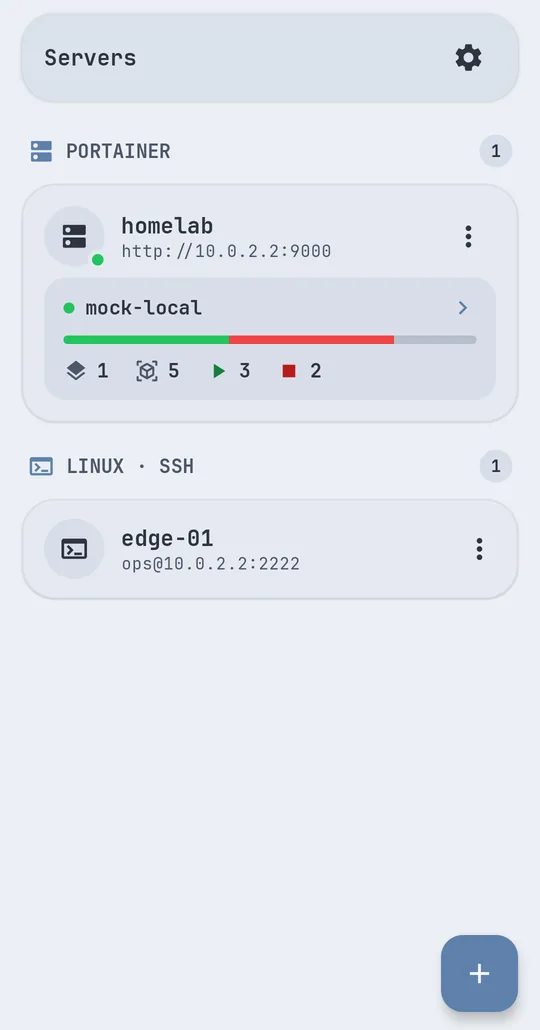
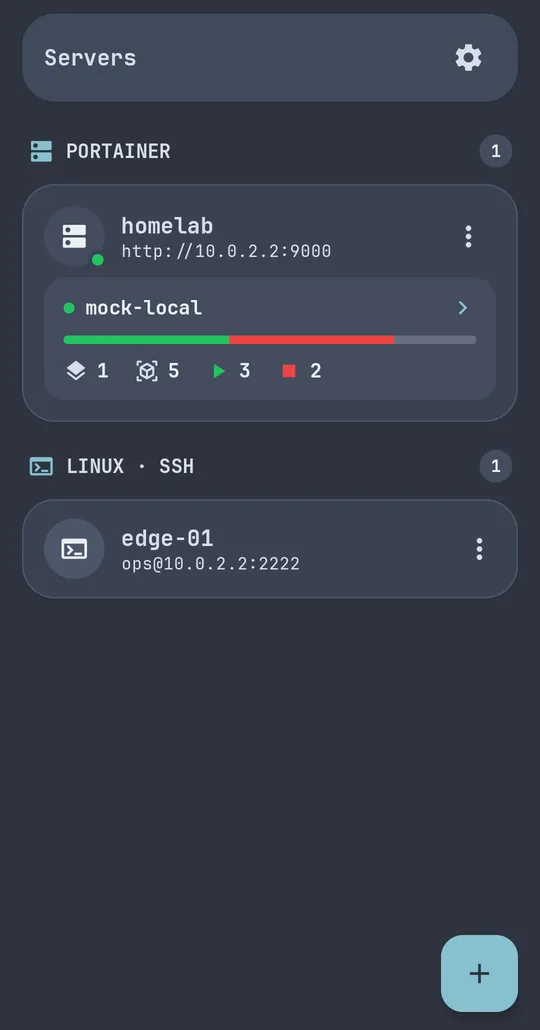
1. Add your Portainer server
- On the main servers screen, tap Add New Server.
- Fill in the connection fields:
- Alias: a recognizable name for the instance (for example,
homelab). - Server URL: full base address (
https://..., orhttp://...on a private network). - Authentication method:
- API Key (recommended on Portainer ≥ 2.x; generate an access token under My account → Access tokens in Portainer).
- Username / Password (authenticates via JWT against your instance).
- Allow self-signed certificates (Allow Insecure): enable only when using HTTPS without a public Certificate Authority on your LAN or VPN.
- Alias: a recognizable name for the instance (for example,
Plain HTTP rule: To prevent credential leaks, the built-in
CleartextGuardblocks cleartext HTTP toward public hosts. Plain HTTP is allowed only for private/local addresses (localhost,.local,10.x.x.x,172.16.x.x–172.31.x.x,192.168.x.x).
2. Add an SSH server (optional)
You can configure a standalone SSH host:
- Alias, IP or Host, and Port (default
22). - Username and credentials: password or an imported SSH Key (.key / .pem) file.
- On the first connection, STALMAS displays the host’s cryptographic fingerprint (TOFU verification). Confirm it before trusting the host.
Read more in the SSH terminal guide.
3. Key operations, device lock, and AI assistant
- Update containers to the latest image (Free): from the
⋮menu in container detail, pull the latest image, compare, and recreate the container keeping its settings (or redeploy the full stack if it belongs to a Portainer stack). - Per-container watch (Pro): in any container’s Summary tab, toggle “Notify me if it fails” to receive alerts for that specific container even when general background monitoring is turned off.
- App lock: set a 4+ digit PIN and optional biometric unlock under Settings → Security.
- AI Assistant: in Settings → AI Integration, add your own Gemini API key (free BYOK) or download a local Gemma 4
.litertlmmodel (Pro). See the AI & privacy guide. - Onboarding & problem reports: replay the 3-sheet welcome tour anytime from About, or send a reviewable diagnostic report from Settings → Report a problem.